Connecting UAE Bank Accounts to Xero: 2026 Guide
- Xero currently highlights Wio Bank and Alaan on its UAE banking page, but you should confirm feed eligibility for your exact account inside Xero.
- A bank feed imports statement lines into Xero for reconciliation. It does not replace your bank account or move money on your behalf.
- If no feed is available, Xero supports manual bank statement imports in formats including OFX, QFX, QIF and CSV.
- The biggest setup risks are duplicate statement lines, missing historical transactions, connecting the wrong account or currency, and assuming a bank brand alone guarantees feed support.
- Even with an automated feed, a proper month-end bank reconciliation remains a finance control, not an optional software step.
Overview
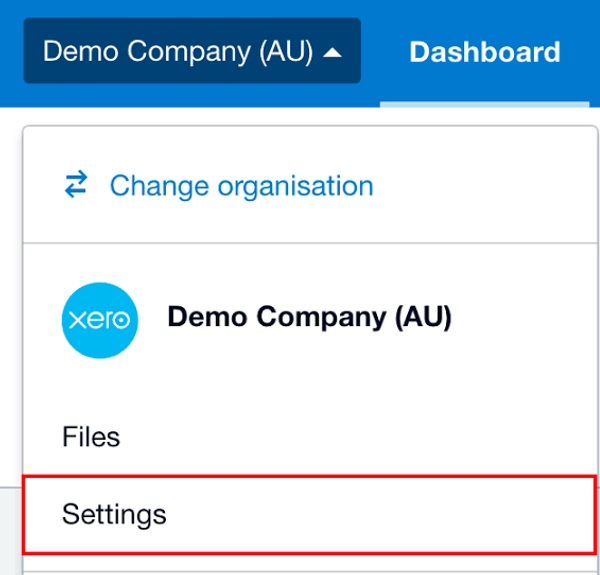
Yes, UAE businesses can connect supported bank and financial accounts to Xero so that statement lines flow into the ledger for reconciliation. As of 27 August 2026, Xero's UAE page specifically names Wio Bank and Alaan as local connections and states that additional feeds are available. The exact answer for any other UAE bank depends on the institution and account type, so the definitive check is inside Xero under Accounting > Bank accounts > Add Bank Account.
If your account does not support a live feed, you can still add the bank account to Xero and import statement data manually. This is an important distinction: a missing bank feed does not make Xero unusable in the UAE, it simply makes the bank reconciliation workflow less automatic.
In this guide:
- What connecting a UAE bank account to Xero actually does
- Which UAE bank accounts currently connect to Xero
- How to connect a UAE bank account to Xero
- What if your UAE bank has no Xero feed
- Handling historical transactions when setting up a feed
- Common UAE Xero bank-feed mistakes
- A practical bank-connection checklist for UAE businesses
- How Maaliya fits around the Xero bank workflow
- Frequently asked questions
- Related Maaliya content
- Sources
What Connecting a UAE Bank Account to Xero Actually Does
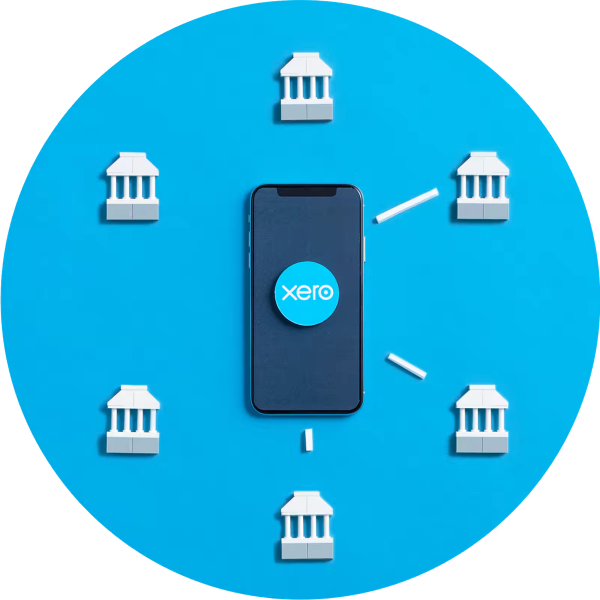
A Xero bank feed automatically imports transactions or statement lines from a bank or financial institution into the corresponding bank account in your Xero organisation, using the process Xero documents in its bank feeds guide. Those lines then sit in Xero ready to be matched, coded and reconciled against invoices, bills, transfers and other accounting entries.
Think of the feed as the accounting copy of the bank statement. The bank remains the source of truth for the actual cash account; Xero receives transaction data so the ledger can be reconciled to it.
"A connected bank feed reduces data entry. It does not remove the need to review whether each transaction has been recorded, classified and reconciled correctly."
Maaliya can review your Xero UAE setup, including bank connections, chart of accounts and VAT configuration, in a free consultation.
Book a free consultation today!Which UAE Bank Accounts Currently Connect to Xero?
Xero's current UAE page explicitly names Wio Bank and Alaan and states that it connects with those providers "and more." Xero does not present that marketing page as a complete list of every eligible UAE institution and account type, so you should not assume a bank is supported merely because another customer uses the same bank.
Wio Bank
Wio says Wio Business can link with accounting platforms including Xero, and Wio announced a direct Xero integration in August 2025. For a UAE SME already choosing between banking options, that makes Wio one of the clearest native Xero-feed cases currently documented by both sides.
Alaan
Alaan's Xero integration can sync transaction and expense data into Xero, including an automated bank-feed workflow. Alaan is broader than a conventional bank-feed use case because it combines corporate cards, spend management and accounting sync, so evaluate it based on the workflow you actually need rather than treating it as identical to a standard current-account feed.
What About Emirates NBD, Mashreq, RAKBANK, ADCB, FAB and Other UAE Banks?
Do not rely on an old blog post or a generic list. Xero's own guidance is to open Accounting > Bank accounts > Add Bank Account and search for the bank. If your bank and account type are eligible, Xero will offer the available connection route. Availability can differ by institution, product and connection method, so the in-product result is the practical source of truth.
How to Connect a UAE Bank Account to Xero
What if Your UAE Bank Has No Xero Feed?
You can still use Xero normally. Add the bank account without a feed, export transactions from online banking, then import the statement file into Xero. Xero's current non-US guidance supports OFX, QFX, QIF, CSV and QuickBooks statement formats, and recommends OFX where available because it generally imports without further editing.
Xero's general rest-of-world guidance states that PDF bank statements cannot be imported directly as bank statement data. If a UAE bank only provides a PDF, first check whether its online banking portal can export CSV, OFX or another supported transaction format. A clean native export is preferable to manually retyping statement lines.
For a business with modest transaction volume, a disciplined weekly or monthly import can work well. The main downside is operational: someone needs to export the file, control the date range, import it once, and verify that nothing was duplicated or omitted.
Handling Historical Transactions When Setting Up a Feed
Decide on a clean cutover date before activating the feed. If Xero imports transactions starting 1 August but you already manually imported transactions from 1 to 15 August, you may create duplicate statement lines. If the feed starts later than your accounting conversion date, manually import the missing earlier period so the bank account reconciles from the opening balance forward.
The safest approach is simple: note the last transaction already present in Xero, note the first transaction delivered by the new feed, and compare the crossover to the bank statement. Fix the boundary before reconciling hundreds of later transactions.
Common UAE Xero Bank-Feed Mistakes
- Assuming the bank brand guarantees support. A corporate current account, card account and another product from the same bank may not have identical feed eligibility.
- Connecting the wrong Xero bank account. The ledger account should match the real legal-entity account and currency you intend to reconcile.
- Importing the same date range twice. Manual files and a newly activated feed can overlap if the cutover date is not controlled.
- Leaving old gaps unresolved. A live feed today does not automatically mean all historical transactions needed for your opening balance or current reporting period are present.
- Treating imported statement lines as completed bookkeeping. The feed gives you bank data; you still need to match or create the correct accounting transaction and review VAT treatment where relevant.
- Ignoring feed delays. A bank feed can be late or temporarily disrupted, so compare Xero to online banking rather than assuming the latest balance is always complete.
A Practical Bank-Connection Checklist for UAE Businesses
- Confirm the Xero organisation represents the correct UAE legal entity.
- Create a separate Xero bank account for each real account you need to reconcile.
- Search for the exact bank and account type inside Xero instead of relying on a generic UAE feed list.
- Record the feed start date and any historical period that still needs manual import.
- Compare the first imported transactions to the actual bank statement and clear duplicates or gaps immediately.
- Reconcile transfers between company bank accounts consistently so cash is not recorded twice as income or expense.
- Complete a full bank reconciliation at month end even when the day-to-day feed appears automated.
How Maaliya Fits Around the Xero Bank Workflow
A bank feed solves data movement, not the whole reconciliation process. Maaliya's broader Xero UAE setup guide explains how bank accounts fit into the organisation setup, while the practical guide on using Xero in the UAE covers the wider limitations and integrations UAE businesses should consider.
Where a usable feed is unavailable, a bank-statement parsing workflow can reduce the manual work of converting statement data into a clean, reconciliation-ready format.
Maaliya's Bank Statement Parser converts UAE bank statements into clean, reconciliation-ready data when a direct Xero feed isn't available.
Parse your bank statements now!Frequently Asked Questions
Bank-feed availability varies by bank and account type. Xero specifically advertises direct UAE feeds from Wio and Alaan and may provide other feeds through an integrated provider. Search for the exact bank and account inside Xero before subscribing.
Where no reliable feed exists, use the Maaliya Bank Statement Parser to convert statements into structured transaction data.
Yes. Add the bank account to Xero without a feed, then manually import statement transactions using a supported format such as OFX or CSV, and reconcile them in Xero as usual.
Xero's general manual-import guidance supports OFX, QFX, QIF and CSV, while PDF import is restricted to certain country editions. UAE businesses should usually obtain an export from online banking or convert the PDF into a supported structured format before import.
Yes. Wio documents Xero as an accounting integration for Wio Business, and Wio announced a direct Xero integration in August 2025.
No. The feed imports bank data and Xero can suggest matches, but the business still needs to review, match, code and reconcile each transaction. Month-end bank reconciliation remains an accounting control, not an optional step.
Related Maaliya Content
Sources
- Xero UAE: eInvoicing and VAT Software for the UAE. Current product page, accessed 27 August 2026.
- Xero Central: Bank feeds available in Xero. Current help article, accessed 27 August 2026.
- Xero Central: About manually importing bank statements. Current help article, accessed 27 August 2026.
- Wio Bank: Wio Bank launches direct integration with Xero. August 2025, accessed 27 August 2026.
- Alaan: Seamless Xero Integration With Alaan. Current integration page, accessed 27 August 2026.
This article is general information about accounting-software workflows. Bank-feed availability and product functionality can change, so verify the current connection shown for your exact institution and account type inside Xero before relying on it operationally.
Like what you read? Add Maaliya as a preferred source on Google.
Built for the UAE.