Maaliya AppFinance software you use yourself
AccountingOur accountants run your finances
Business ServicesSet up, run or close a UAE company
ResourcesGuides, research and free tools
About usWho we are and how to reach us
QuickBooks to Xero: UAE Migration Guide (2026)
 Lina Mansouri
Overview
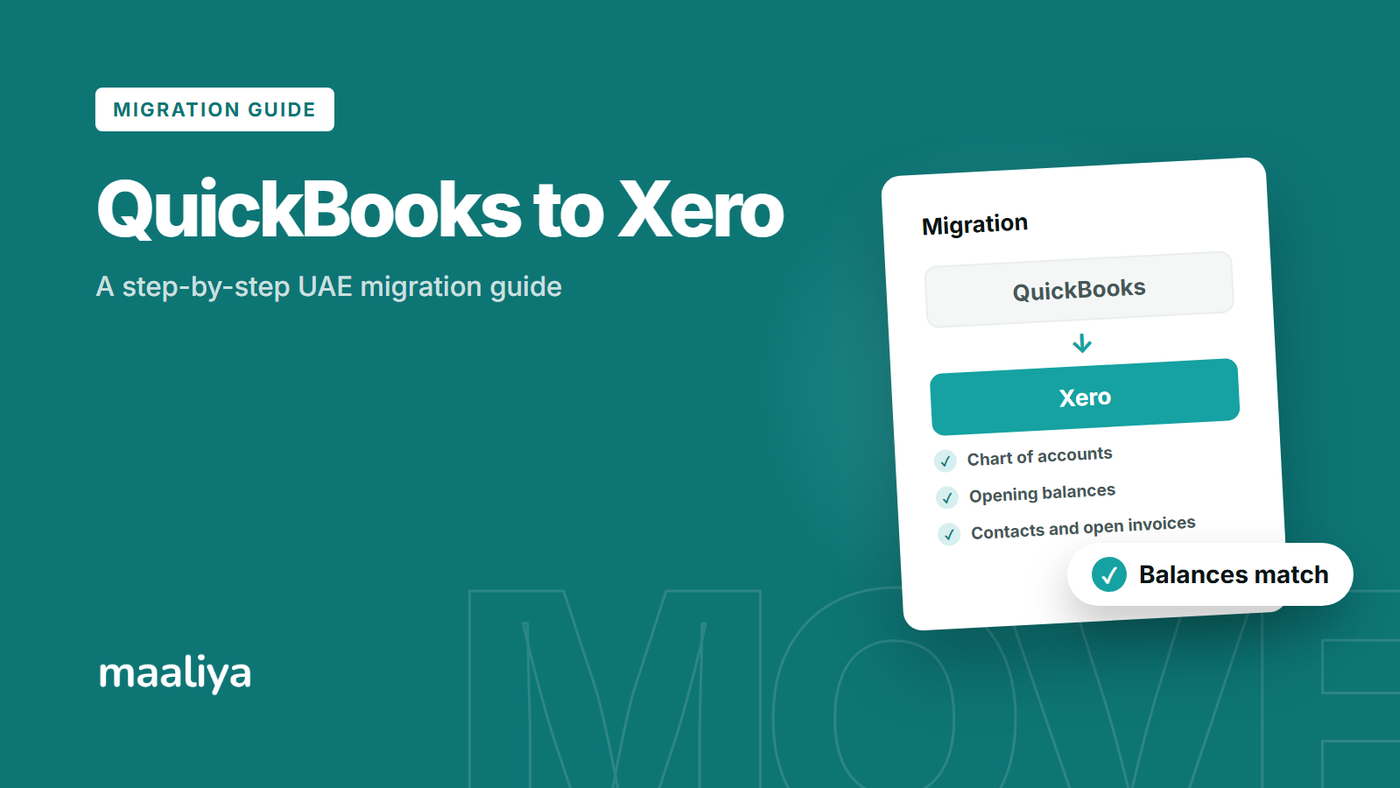
Moving from QuickBooks Online to Xero is workable, but it should be treated as an accounting conversion rather than a simple file transfer. The safest UAE migration closes and reconciles QuickBooks at a defined cutover date, exports a permanent archive, maps the chart of accounts and tax treatment, migrates either detailed history or verified opening balances and open items, and then reconciles Xero back to QuickBooks before going live.
For a UAE VAT-registered business, the key risk is not whether every old transaction appears in Xero. It is whether the converted ledger preserves accurate balances, open receivables and payables, bank continuity, and a defensible audit trail for VAT periods already filed.
In this guide:
• What should you move from QuickBooks to Xero?
• Choose your migration method first
• Step 1: Pick a clean cutover date
• Step 2: Export and archive QuickBooks before changing anything
• Step 3: Map the QuickBooks chart of accounts to Xero
• Step 4: Clean customers and suppliers before import
• Step 5: Decide between detailed history and conversion balances
• Step 6: Preserve open invoices and bills
• Step 7: Verify UAE VAT instead of blindly copying tax codes
• Step 8: Move bank data without duplicates
• Step 9: Reconcile the converted Xero file before go-live
• Common QuickBooks-to-Xero migration mistakes
• QuickBooks to Xero migration checklist
• Frequently asked questions
• Sources
What should you move from QuickBooks to Xero?
At minimum, plan for the chart of accounts, customer and supplier contacts, opening balances, unpaid invoices, unpaid bills, bank balances and post-cutover bank activity. Depending on the business, you may also need credit notes, inventory, fixed assets, multicurrency balances, tracking information and historical transactions.
Intuit currently allows QuickBooks Online users to export reports and lists to Excel, including data supporting invoices, receipts and bills. Before migration, export and retain a complete set of accounting reports even if you use an automated conversion service.
Choose your migration method first
There are three practical routes: an automated QuickBooks-to-Xero conversion service, a controlled manual migration using Xero imports and conversion balances, or a fresh-start conversion. Xero currently promotes conversion tools and partners for QuickBooks migrations, while its DIY conversion tools support imports such as chart of accounts, contacts, invoices, bills and fixed assets.
An automated conversion is attractive when your QuickBooks file is clean and you want transaction history inside Xero. A fresh start is often better when historical data is inconsistent: preserve the QuickBooks archive, enter verified conversion balances and open items, and start clean from the cutover date.
Book a free consultation and we'll help you choose between an automated conversion, a DIY migration or a clean fresh start.
Book a free consultation today!Step 1: Pick a clean cutover date
Use a month end where possible. For example, if QuickBooks is fully reconciled through 30 September 2026, make 1 October the operational start date in Xero. Close QuickBooks through 30 September, save the final reports, and use those reports as the control totals for the conversion.
For a UAE VAT-registered business, aligning the cutover with a VAT period boundary can reduce reconciliation complexity, but only if the period is genuinely complete. Do not force a VAT-period cutover if bank, receivables, payables or tax reconciliations are unfinished.
Step 2: Export and archive QuickBooks before changing anything
Create a migration archive before you clean or remap the file. Intuit's current QuickBooks Online export workflow lets users export reports and lists to Excel. Keep the exported files together with PDF copies of the reports that will serve as your migration controls.
• Trial balance and general ledger at the cutover date
• Balance sheet and profit and loss
• Accounts receivable and accounts payable ageing
• Bank and credit-card reconciliation reports
• VAT reports and copies of filed UAE VAT returns
• Customer, supplier, chart-of-accounts and product/service lists
• Open invoices, bills and credit notes
Step 3: Map the QuickBooks chart of accounts to Xero
Do not assume every QuickBooks account should be copied one-for-one. Build a mapping sheet showing the QuickBooks account, its balance, the intended Xero account and any change in classification. Remove duplicates and obsolete accounts, but document every consolidation so the opening trial balance remains traceable.
Pay particular attention to accounts receivable, accounts payable, bank and credit-card accounts, VAT control accounts, fixed assets, accumulated depreciation, loans, accruals, prepayments and shareholder or director balances. For a full walkthrough, see our Xero Chart of Accounts UAE guide.
Step 4: Clean customers and suppliers before import
Standardise legal names, merge obvious duplicates and check payment terms and contact details before loading contacts into Xero. The migration is a good time to stop carrying multiple records for the same legal entity under slightly different spellings.
Step 5: Decide between detailed history and conversion balances
Detailed history is useful when you need prior invoices, bills and transaction-level comparisons inside Xero. Conversion balances are cleaner when the old QuickBooks file contains years of inconsistent coding, or when historical detail can remain in the archived system.
If you use conversion balances, start from a final reconciled QuickBooks trial balance. Do not estimate the numbers. The Xero opening position should agree, account by account, to the QuickBooks closing position, subject only to documented migration adjustments.
Step 6: Preserve open invoices and bills
A single receivables or payables opening balance is not enough for normal operations. If customers still owe invoices at cutover, those open invoices need to be represented so later receipts can be allocated correctly. The same applies to unpaid supplier bills and relevant credit notes.
After migration, compare Xero's receivables and payables ageing reports with the final QuickBooks ageing reports at exactly the same date. Investigate differences before new transactions are posted.
Step 7: Verify UAE VAT instead of blindly copying tax codes
QuickBooks and Xero do not need identical tax-code names for the accounting result to be correct. What matters is that each UAE transaction receives the correct VAT treatment and that the migrated VAT control position reconciles to the records and returns already filed.
The UAE Federal Tax Authority requires records that provide a sufficient audit trail from source documents through to the VAT return. Its Taxable Person Guide states that required VAT records are generally retained for at least five years after the end of the relevant tax period, with longer retention possible in specified circumstances.
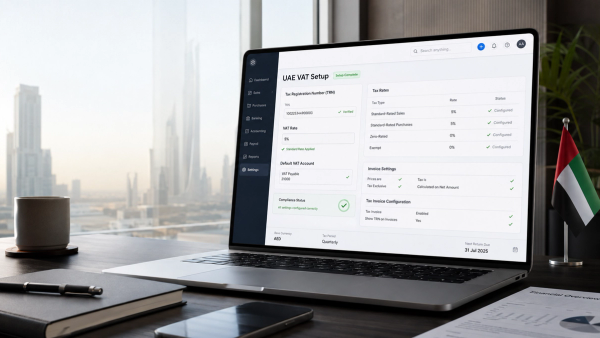
Before go-live, reconcile the QuickBooks VAT control balance to the filed-return workings, then verify Xero's UAE tax configuration. Pay extra attention to standard-rated transactions, zero-rated supplies, exempt supplies, outside-scope items, imports and reverse-charge transactions. For step-by-step setup, see Setting Up Xero for UAE VAT.
Do not recreate old transactions with guessed VAT codes simply to make Xero look complete. If detailed history is migrated, tax treatment should reflect the original transaction and reconcile to the historical VAT returns. For examples of what to avoid, see Common Xero VAT Mistakes in the UAE.
"UAE VAT records must generally be retained for at least five years after the end of the relevant tax period, with longer retention possible in specified circumstances."
– UAE Federal Tax Authority, Taxable Person Guide for VAT
Step 8: Move bank data without duplicates
Define the exact first bank-transaction date that belongs in Xero. Xero UAE currently supports bank feeds where available and manual imports in OFX, QIF, QBO and QFX and CSV formats. Xero says imported bank data is checked for duplicates, but you should still control the date range and avoid overlapping manual imports with bank-feed history.
After the bank data is loaded, compare the first and last imported transactions, reconcile the closing balance to the actual statement, and confirm there are no gaps. For a full walkthrough, see our Xero Reconciliation Guide UAE.
Step 9: Reconcile the converted Xero file before go-live
A successful import is not proof of a successful migration. The migration is complete only when Xero agrees to the final QuickBooks control reports.
• Trial balance: Xero agrees to the final QuickBooks trial balance.
• Bank and cards: balances agree to statements and the QuickBooks reconciliations.
• Receivables: Xero ageing agrees to the final QuickBooks customer ageing.
• Payables: Xero ageing agrees to the final QuickBooks supplier ageing.
• VAT: the Xero VAT control position agrees to the documented QuickBooks closing position.
• Fixed assets, loans, accruals and prepayments: balances agree to supporting schedules.
Common QuickBooks-to-Xero migration mistakes
• Migrating an unreconciled QuickBooks file and expecting Xero to fix historical errors.
• Copying the chart of accounts without mapping account types and system accounts.
• Migrating receivables and payables only as totals, losing the open items underneath them.
• Assuming QuickBooks tax codes map directly to Xero's UAE VAT treatment.
• Importing bank transactions that overlap with a newly connected feed.
• Cancelling or losing access to QuickBooks before saving a complete archive and control reports.
- Choose and document the cutover date.
- Finish QuickBooks bank, receivables, payables and VAT reconciliations.
- Export and archive reports and lists.
- Map the chart of accounts and UAE VAT treatment.
- Choose automated conversion, detailed DIY migration or a fresh start.
- Import contacts, balances and open items.
- Load bank data from one controlled start date.
- Reconcile Xero back to QuickBooks before normal posting begins.
Frequently asked questions
Yes. Xero offers QuickBooks conversion routes and conversion partners, and businesses can also migrate manually using Xero's import tools. Availability and included history vary by conversion method and region, so check the current Xero conversion option before relying on a specific automated service.
Not necessarily. If historical QuickBooks data is clean and useful for comparisons, detailed conversion can make sense. If it is messy, a reconciled fresh start with conversion balances, open items and a retained QuickBooks archive can produce a cleaner Xero file.
They still need to be retained for the applicable statutory period. Changing accounting systems does not remove the obligation to preserve records supporting VAT returns that have already been filed.
Yes, but control the cutover carefully. Xero UAE supports manual bank-statement imports and bank feeds where available. Avoid importing a date range that overlaps with feed history.
Before carrying the QuickBooks VAT balance into Xero, use Maaliya's VAT Health Checker to identify gaps worth resolving first. A clean VAT reconciliation is much easier to migrate than a balance you still cannot explain.
Check VAT Health NowRelated Maaliya content
Sources
Intuit QuickBooks: Export your QuickBooks Online data. Updated August/September 2026; accessed 22 September 2026.
Xero: Move from QuickBooks to Xero / conversion guidance. Accessed 22 September 2026.
Xero UAE: Connect Your Bank to Xero: Save Time With Bank Feeds. Accessed 22 September 2026.
UAE Federal Tax Authority: Taxable Person Guide for Value Added Tax; and VAT Guides, References & Public Clarifications. Accessed 22 September 2026.
Lina Mansouri is a Corporate Services specialist at Maaliya, where she helps UAE businesses with company incorporation, VAT and corporate tax registration, and liquidation. She writes Maaliya's guides to Xero, UAE VAT, bank reconciliation and eInvoicing, drawing on the questions UAE founders and finance teams bring to Maaliya every day.
Like what you read? Add Maaliya as a preferred source on Google.
Built for the UAE.