Creating UAE-Compliant Invoices in Xero: 2026 Guide
- A Xero invoice is only UAE-compliant if the final PDF contains every required particular, not just a correctly calculated 5% VAT amount.
- Most UAE B2B sales should use a full tax invoice; a simplified tax invoice only fits unregistered customers or VAT-inclusive amounts up to AED 10,000.
- The supplier's TRN must be entered in Xero's organisation settings and confirmed as visible on the actual invoice template, not just stored in the system.
- VAT must always be shown in AED, including the exchange rate, even when the commercial invoice is issued in a foreign currency.
- A tax invoice must generally be issued within 14 days of the date of supply, and that date must be shown separately when it differs from the invoice date.
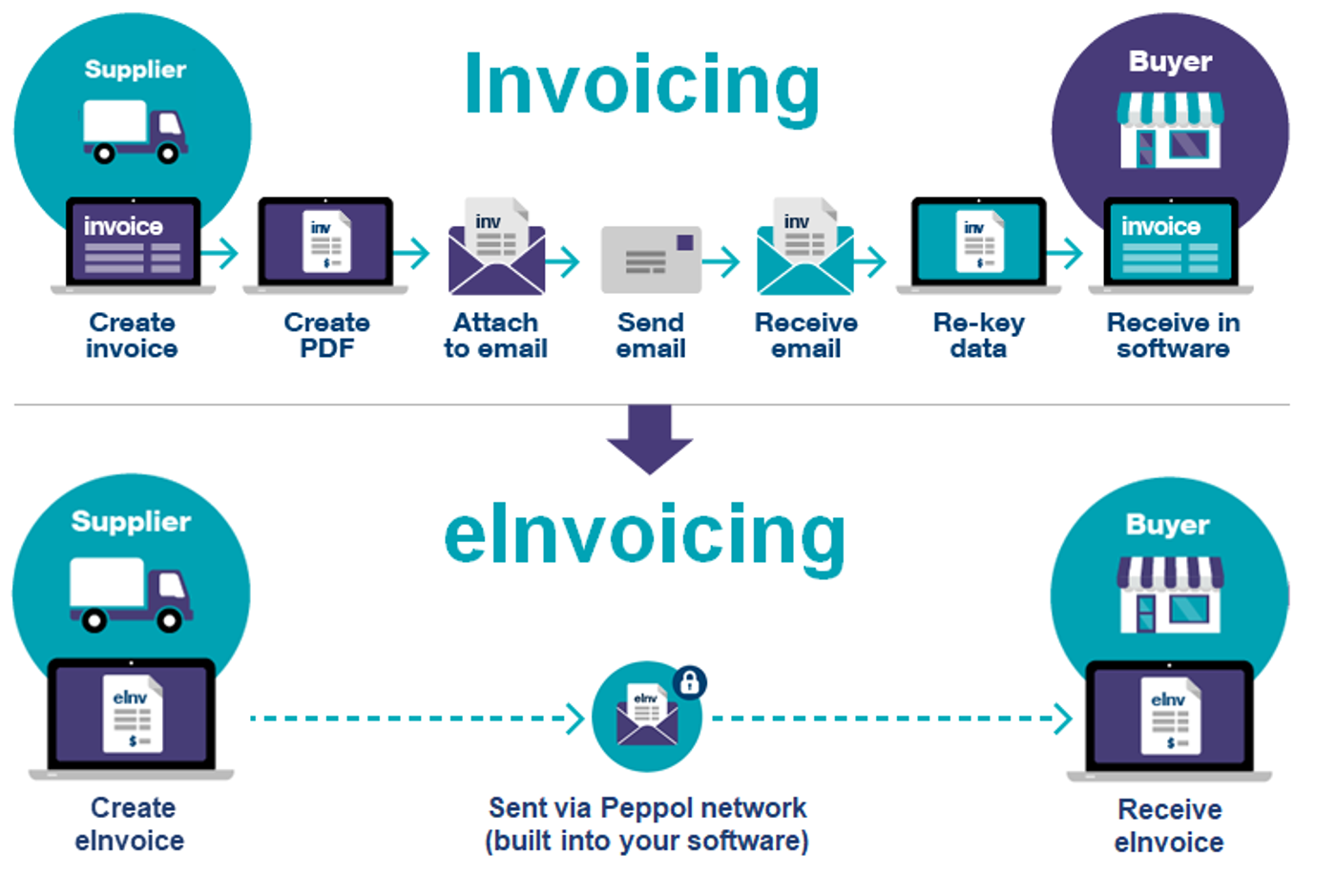
- UAE eInvoicing is a separate, still-emerging requirement from producing a compliant PDF tax invoice today.
Overview
A Xero invoice can be compliant with UAE VAT rules, but only if the final invoice contains the information required under UAE tax-invoice rules. The software does not make an invoice compliant simply because it calculates 5% VAT correctly. You still need the correct supplier TRN, customer information where required, invoice and supply dates, line descriptions, VAT rate, AED amounts and the right template output.
The practical approach is to configure Xero once, test the actual PDF your customer receives, and then use that approved template consistently. This guide covers that setup for UAE VAT-registered businesses in 2026.
In this guide:
- What a Full UAE Tax Invoice Must Contain
- When a Simplified Tax Invoice Can Be Used
- Step 1: Enter the Correct UAE Entity Details in Xero
- Step 2: Show the TRN on the Xero Invoice Template
- Step 3: Store Customer Details Properly
- Step 4: Configure VAT Rates Before You Invoice
- Step 5: Show Tax Clearly on the Invoice
- Step 6: Check the Invoice Date Against the Date of Supply
- Step 7: Handle Foreign-Currency Invoices Carefully
- Step 8: Use an Advanced Xero Template When Needed
- A Practical Pre-Launch Test Pack
- Common Xero Invoice Mistakes in the UAE
- What Changes With UAE eInvoicing?
- Frequently Asked Questions
- How Maaliya Can Help
- Sources
What a Full UAE Tax Invoice Must Contain
UAE VAT rules require a full tax invoice to contain specific particulars. The Federal Tax Authority's tax-invoice guidance is a useful operational reference for checking the output your accounting system generates.
- The words "Tax Invoice" clearly displayed.
- Supplier name, address and Tax Registration Number (TRN).
- Recipient name, address and TRN where the recipient is VAT registered.
- A sequential or unique invoice number, invoice issue date and date of supply where different.
- Description, unit price, quantity or volume, VAT rate, discounts and relevant amounts expressed in AED.
- VAT amount payable in AED, the exchange rate where currency conversion applies, and reverse-charge wording where required.
For most ordinary UAE B2B sales, the safest Xero setup is to design the invoice as a full tax invoice rather than relying on a simplified format.
Book a free consultation and we'll walk through your Xero setup with you.
Book a free consultation today!When a Simplified Tax Invoice Can Be Used
A simplified tax invoice may generally be used where the customer is not VAT registered, or where the customer is VAT registered and the VAT-inclusive consideration does not exceed AED 10,000, subject to the applicable rules and exceptions.
A simplified invoice still needs the words "Tax Invoice", the supplier's name, address and TRN, the issue date, a description of what was supplied, and the total consideration and VAT amount charged. If your business routinely invoices VAT-registered companies, building one robust full-invoice template usually reduces mistakes.
Step 1: Enter the Correct UAE Entity Details in Xero
Start with the legal entity, not the trading nickname. Your Xero organisation details should reflect the entity issuing the invoice, including the legal name and business address. If you are still configuring the file, use Maaliya's Xero Organisation Settings for UAE Businesses guide as the broader setup checklist.
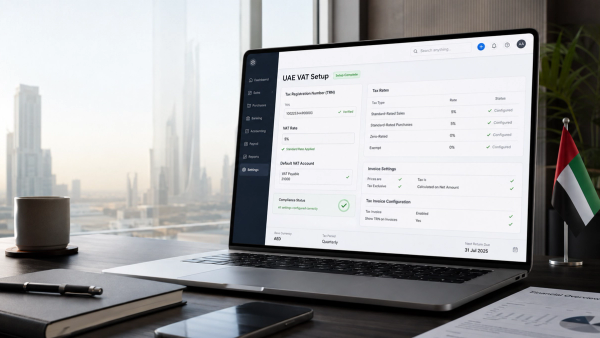
Then enter the business's UAE TRN in Xero's financial or tax settings. Do not type the TRN manually into every invoice; store it centrally and make the template display it.
Step 2: Show the TRN on the Xero Invoice Template
Xero's invoice-template settings allow the organisation's tax number to be shown on invoices. In the branding theme, enable the tax-number display and verify the contact details shown on the template.
Saving the TRN in the organisation settings is not enough. Create a test invoice, export or preview the final PDF, and physically check that the TRN appears in the customer-facing document.
Step 3: Store Customer Details Properly
For VAT-registered customers, keep the customer's legal name, billing address and TRN in the Xero contact record rather than typing them into invoice descriptions. Xero's contact model includes a tax-number field, which makes consistent customer master data possible.
If your chosen standard template does not display every customer tax detail you need, review the template output and use an advanced invoice template where necessary. The compliance test is the finished invoice, not the data-entry screen.
Step 4: Configure VAT Rates Before You Invoice
Use tax rates that reflect the actual UAE VAT treatment. Standard-rated, zero-rated, exempt, outside-scope and reverse-charge transactions are not interchangeable. Maaliya's Xero UAE Tax Rates Explained guide covers the coding logic in detail.
For an ordinary standard-rated UAE sale of AED 10,000 before VAT, the invoice would generally show AED 500 VAT and AED 10,500 total. The harder part is making sure the transaction genuinely belongs in the standard-rated category and the invoice displays the rate and tax clearly.
Step 5: Show Tax Clearly on the Invoice
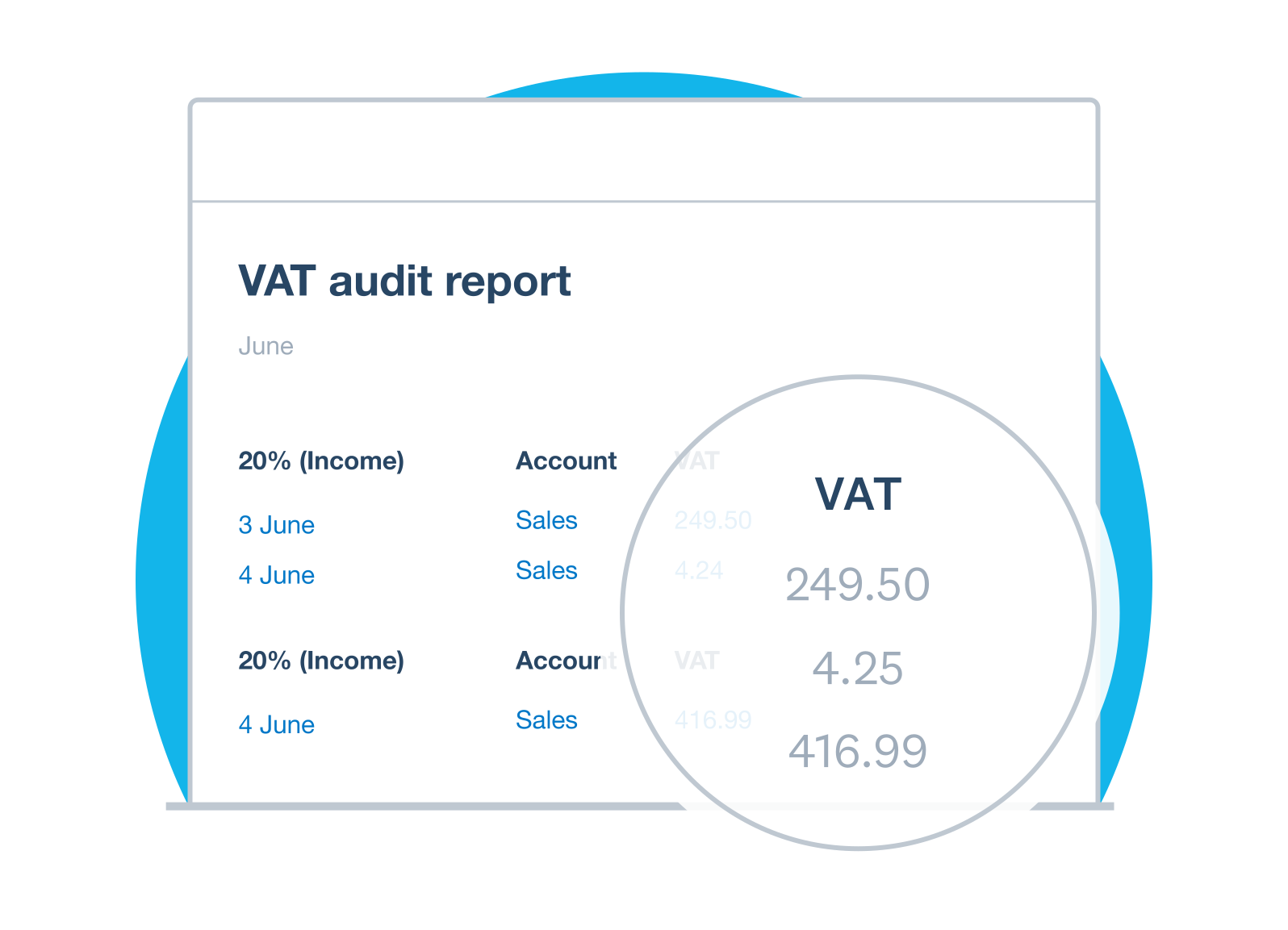
Xero's invoice templates let you control how tax is displayed, including whether amounts are tax-inclusive or exclusive and whether tax rates are shown. Configure the tax breakdown so a customer can understand the taxable amount, VAT rate, VAT amount and total without reverse-engineering the invoice.
For UAE compliance, do not optimise the template for aesthetics at the expense of tax information. A minimal-looking invoice that hides legally required particulars is not an upgrade.
Step 6: Check the Invoice Date Against the Date of Supply
The invoice issue date and the VAT date of supply are not always the same. UAE tax-invoice rules require the date of supply to be shown when it differs from the invoice date. Your finance process therefore needs to identify those cases rather than assuming the Xero invoice date solves both requirements.
UAE VAT law generally requires a tax invoice to be issued within 14 days from the relevant date of supply, subject to the detailed rules and exceptions. The FTA's public clarification on tax invoices for concerned services reiterates the 14-day requirement.
"UAE VAT law generally requires a tax invoice to be issued within 14 days from the relevant date of supply."
– FTA Public Clarification VATP044, Concerned Services: Tax Invoices and Input Tax Recovery
Step 7: Handle Foreign-Currency Invoices Carefully
If you invoice a customer in USD, EUR, GBP or another currency, UAE VAT invoicing still requires the VAT amount to be expressed in AED, together with the exchange rate used where currency conversion applies. Do not assume that a commercially correct foreign-currency Xero invoice automatically satisfies this VAT presentation requirement.
Create a real foreign-currency test invoice and inspect the PDF. If the standard output does not show the required AED VAT information and exchange-rate disclosure for your transaction, configure an advanced template or another controlled invoicing workflow before sending live invoices.
Step 8: Use an Advanced Xero Template When Needed
Xero supports advanced DOCX invoice templates that can be customised with merge fields. This is useful when your UAE invoice needs a layout or disclosure that the standard branding theme does not present cleanly.
Keep the template controlled. One approved UAE template is better than five slightly different templates with inconsistent TRNs, tax wording or bank details.
A Practical Pre-Launch Test Pack
Before making the template your default, issue test invoices that reflect the transactions you actually expect to process.
For each test, review the PDF exactly as the customer will see it. Check the words "Tax Invoice", legal supplier name, address, supplier TRN, customer details, customer TRN where applicable, invoice number, dates, descriptions, VAT rate, VAT amount, totals, currency and any required special wording.
Common Xero Invoice Mistakes in the UAE
- The TRN exists in Xero but is not displayed on the actual invoice template.
- The customer is VAT registered but the customer TRN or address is missing from the final invoice.
- The invoice uses the correct 5% calculation but the wrong underlying VAT code or legal treatment.
- The invoice date is shown but a different date of supply is omitted.
- A foreign-currency invoice shows VAT only in the foreign currency and does not provide the required AED tax amount or exchange-rate information.
For the accounting-side errors that often sit behind invoice problems, see Common Xero VAT Mistakes in the UAE.
What Changes With UAE eInvoicing?
UAE eInvoicing is a separate requirement from producing a compliant PDF tax invoice. The UAE is moving to structured electronic invoices transmitted through Accredited Service Providers, and Xero's UAE page currently says its UAE eInvoicing capability is coming soon.
That means businesses should solve today's VAT invoice quality now, while separately preparing for the structured eInvoicing rollout. A clean customer master, correct TRNs, consistent product descriptions and reliable VAT coding will make that transition easier.
Frequently Asked Questions
Yes. Xero can create invoices that contain UAE tax-invoice information, provided the organisation, contact, VAT and template settings are configured correctly. Compliance depends on the final document containing the required particulars.
Yes. For a tax invoice issued by a UAE VAT registrant, the supplier's name, address and TRN are required particulars. Do not assume the TRN is visible just because it is stored in Xero.
For a full tax invoice, the recipient's name, address and TRN are required where the recipient is VAT registered. Keep customer tax data accurate in Xero contacts.
Commercially, a UAE business can invoice in another currency, but UAE VAT invoicing requires the tax amount to be expressed in AED and the relevant exchange rate to be shown where conversion applies.
No. Under the UAE eInvoicing framework, an eInvoice is structured invoice data exchanged electronically through the approved system. A PDF or ordinary emailed invoice is not, by itself, the future UAE eInvoice format.
How Maaliya Can Help
Before making a Xero template your default, run a real invoice through Maaliya's VAT Invoice Checker to catch missing fields and obvious UAE VAT presentation issues. If you need to create a clean invoice outside Xero, use Maaliya's Tax Invoice Generator.
Run a real Xero invoice through Maaliya's VAT Invoice Checker to catch missing fields and presentation issues.
VAT Invoice CheckerCreate a clean, UAE-compliant tax invoice in minutes with Maaliya's Tax Invoice Generator.
Create VAT Invoice Now!Related Maaliya Guides

Sources
- Federal Tax Authority: Tax Invoices guidance; accessed 3 September 2026.
- Federal Tax Authority: VAT Public Clarification VATP044, Concerned Services, Tax Invoices and Input Tax Recovery, 26 May 2025; accessed 3 September 2026.
- Xero Central: Create an invoice template; accessed 3 September 2026.
- Xero Central: Choose how to show tax on your invoices; accessed 3 September 2026.
- Xero UAE: eInvoicing and VAT Software for the UAE; accessed 3 September 2026.
This article provides general information and is not personalised tax, accounting or legal advice. UAE VAT treatment depends on the facts of the transaction and current legislation and guidance.
Like what you read? Add Maaliya as a preferred source on Google.
Built for the UAE.